Version History
All forms in Team Forms are version-controlled through SharePoint’s version history functionality. However, Team Forms offers a user-friendly interface to easily interact with this history. This feature lets you view, compare, and restore previous versions. Version management is handled by Microsoft and configured by your IT department.
Viewing Version History
Section titled “Viewing Version History”-
Open the Form Builder for the desired form.
-
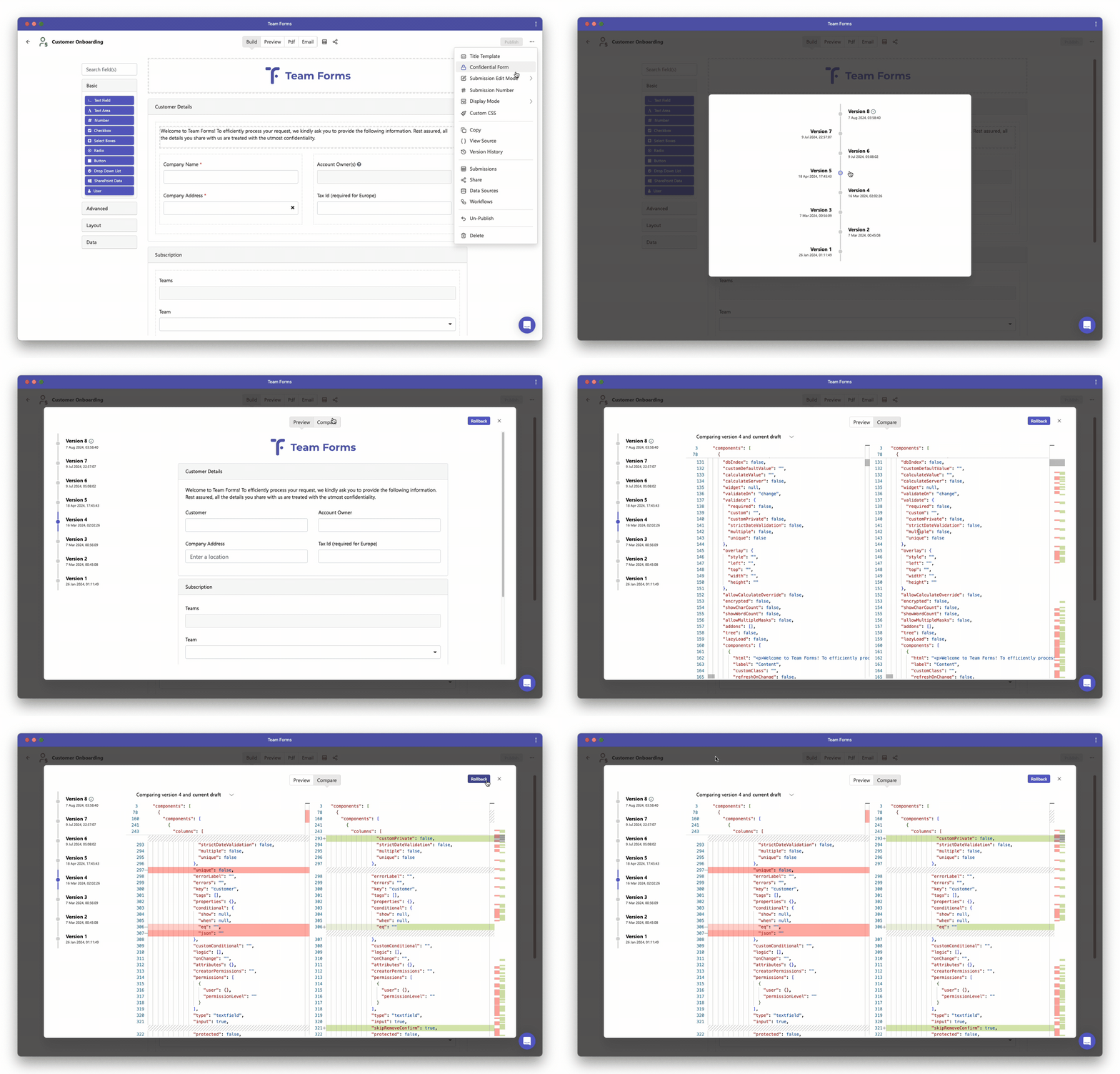
Click the “…” icon in the top-right corner and select “Version history”.
-
A timeline will display all published versions, showing when changes were made, who made them, and any comments.
-
Click a version to preview it.
Comparing Versions
Section titled “Comparing Versions”-
In preview mode, click the “Compare” tab to compare the selected version to the current draft or other versions. You can use the drop down arrow to change which versions you are comparing.
-
Review the differences between versions.
Restoring a Previous Version
Section titled “Restoring a Previous Version”-
Click “Restore” in the top-right corner to revert to a selected version.
-
Publish the restored version to make it the active form.