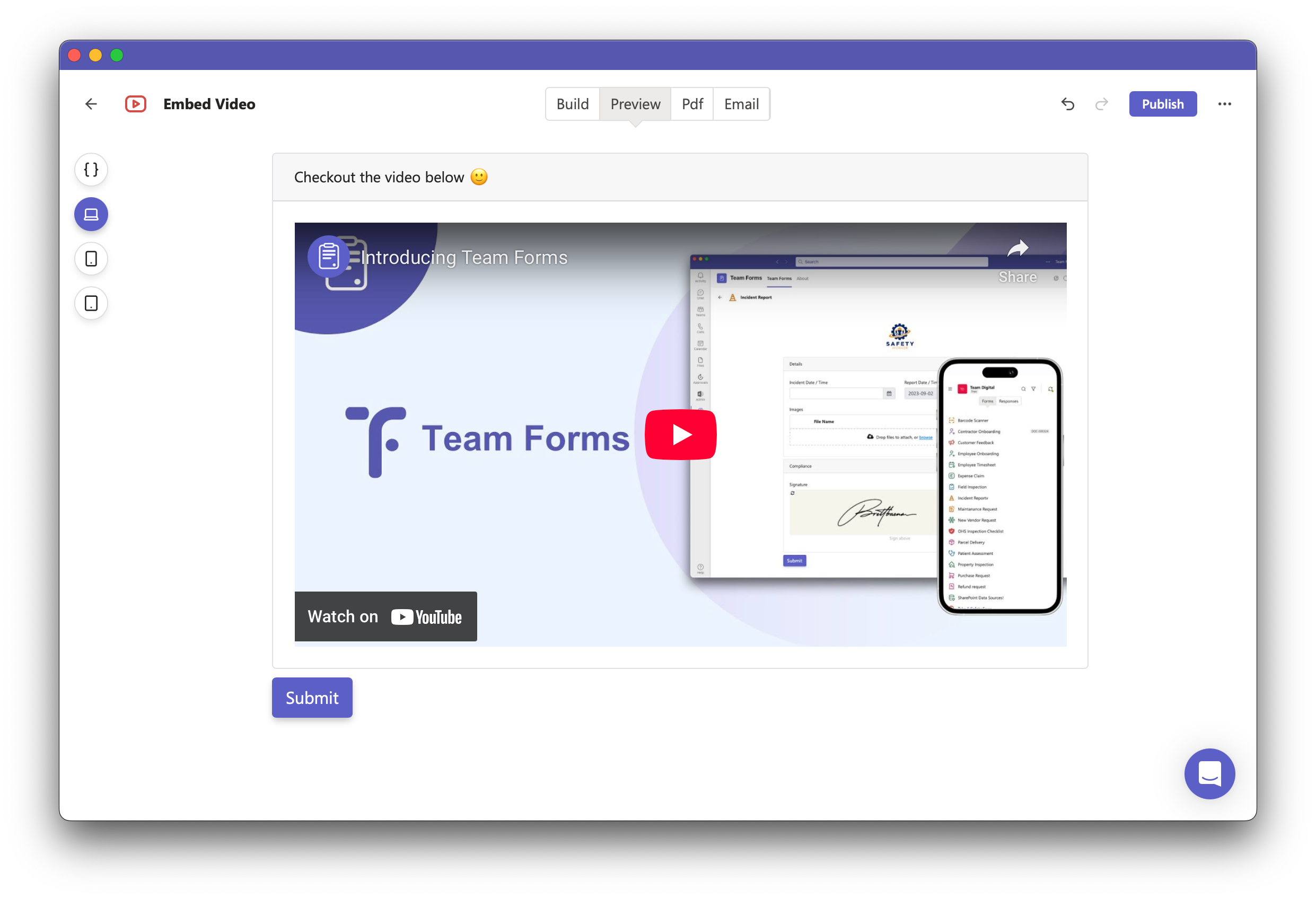
How to Embed a Video into Your Form
Absolutely! Here’s a polished and professional version of your How-To guide:
⸻
How to Embed a Video into Your Form
To embed a video into your form, the video must first be uploaded to a streaming service like YouTube or Vimeo.
⚠️ Note: Team Forms does not currently support embedding videos directly from SharePoint or Microsoft Stream. Support for this is coming soon.
Option 1 — Using the Content Component
Section titled “Option 1 — Using the Content Component”-
Drag and drop the Content component into your form.
-
In the content settings, click the video icon to open the video embed dialog.
-
Paste the URL to your hosted video (e.g., YouTube or Vimeo link).
-
The video will appear as an embedded frame inside the content component.
-
You can also add text or other content above or below the video if desired.
Option 2 — Using the HTML Component
Section titled “Option 2 — Using the HTML Component”-
Get the embed code from your video host (typically an HTML
-
Drag and drop the HTML component into your form.
-
In the HTML component settings, paste the embed code into the “Content” field.
Your video is now embedded and ready for your form users to view!