
Managing forms
Forms often change after they are first published. Team Forms keeps a draft separate from the published form and uses SharePoint version history to maintain a record of published changes.
To edit a form, hover over it, open the … menu, and select Open Builder. You need an Author role for the team or permission to edit that form.
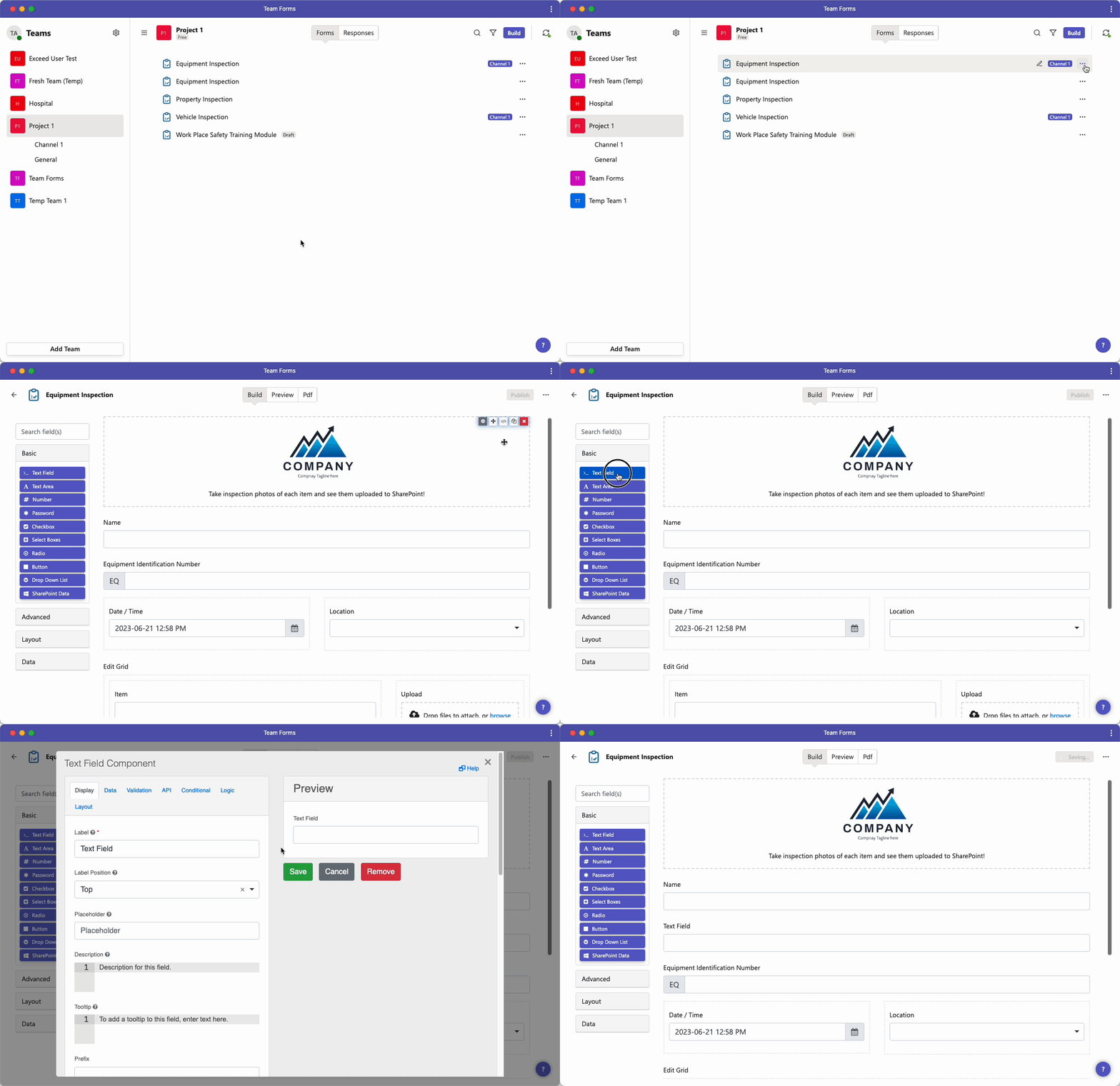
Organise your forms
Section titled “Organise your forms”Use clear names and categories so responders and authors can find the correct form. You can also group forms into custom views when a team has a large catalogue.
- Rename a form
- Categorise forms
- Group the forms list
- Create and manage custom views
- Add a custom form icon
Maintain and recover forms
Section titled “Maintain and recover forms”Every published form is version-controlled through SharePoint. From the builder’s … menu, open Version history to preview, compare, and restore an earlier version. A restored version becomes live after you publish it.
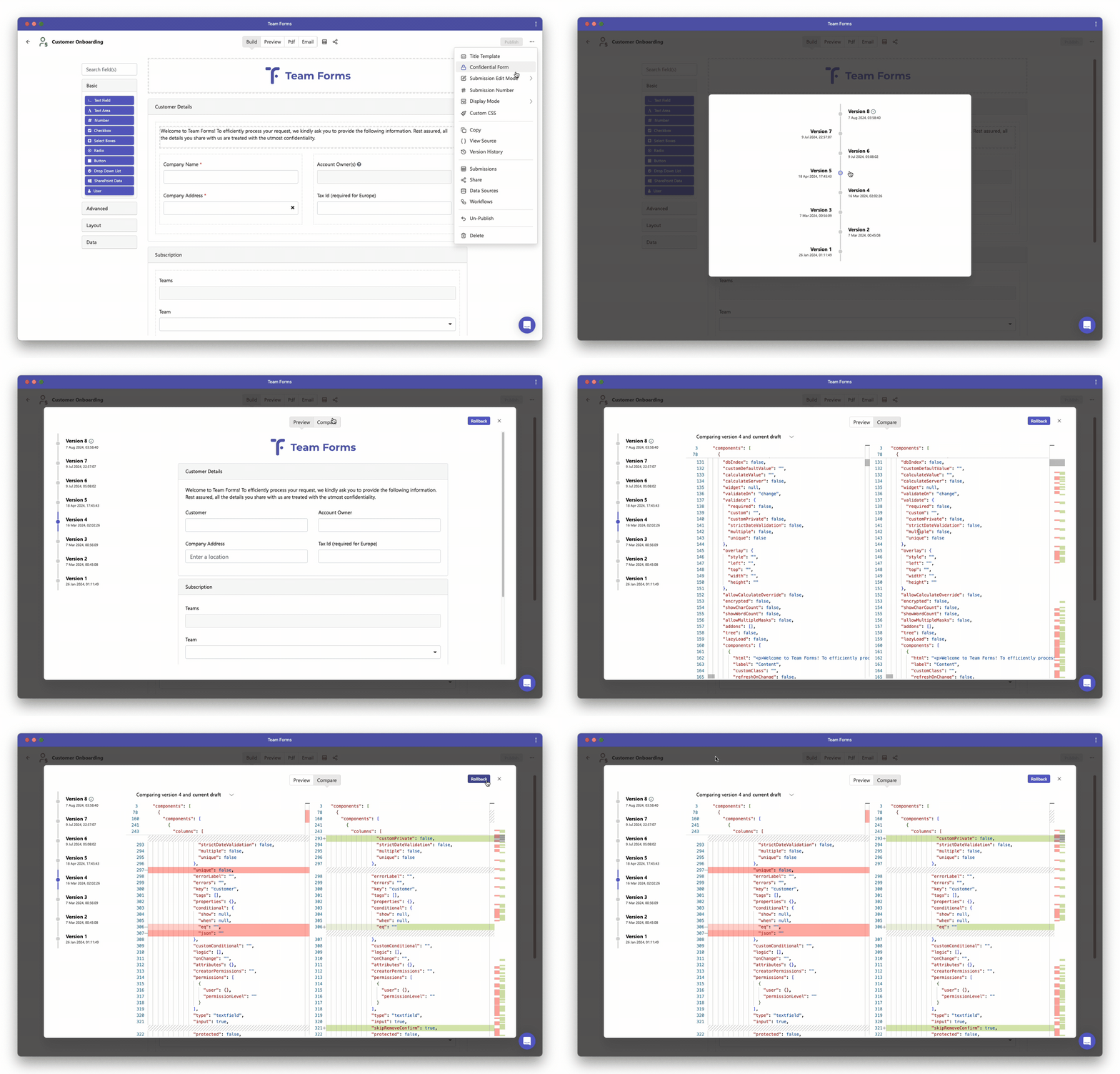
Team Forms also supports source-code export and import for controlled transfers or backups. Prefer the normal copy and migration features when moving forms between teams or organisations, because a form may depend on permissions, data sources, workflows, and response data that are not represented by the form schema alone.
- Version history
- Recover a deleted form
- Download form source code
- Import form source code
- Copy forms between teams
- Copy forms between organisations
For changes to the questions, layout, and behaviour inside a form, continue to Building forms. For releasing those changes, see Publishing and sharing.