
Drop-down menu is empty for my users
When using a SharePoint data component in Team Forms, you may notice that a drop-down menu is populated for you but appears empty for another user.
Start by checking the source’s Advanced settings → Data access. The required permissions depend on its Access method.
- User access: each responder needs at least Read access to the underlying SharePoint list or file. Grant access in SharePoint, or configure Managed access if responders should use the data without direct SharePoint access.
- Managed access: check that the Microsoft connection is valid and that the authorising account can still read the source. Use Authorize, Re-authorize, or Use my connection as shown in the connection panel.
- Public Anyone links: the source must use Managed access, have Public form access enabled, and be referenced by the published form. Check the Anyone links tab in the Share dialog for sources that need attention. Reload the public form after correcting the settings.
If access is working, check Advanced settings → SharePoint query for filters that exclude the expected rows or columns. Then check the component’s Filter Query. A component cannot display records excluded by the source query. See SharePoint OData filtering.
If you need to troubleshoot further, ask the affected user to check the data source from their side (you cannot reliably test this yourself if you have broader permissions).
For a signed-in responder, ask the user to:
-
Open Team Forms in their preferred web browser or as a Team Personal App (the left sidebar is not available when accessed as a Channel App).
-
Hover over the team in the left sidebar, click the “…” menu, then select Data Sources.
-
Check whether any data source shows an error icon and how many rows are listed. Hover over any error icon to read the message.
-
Sometimes manually refreshing the data-source from this screen can help resolve the issue.
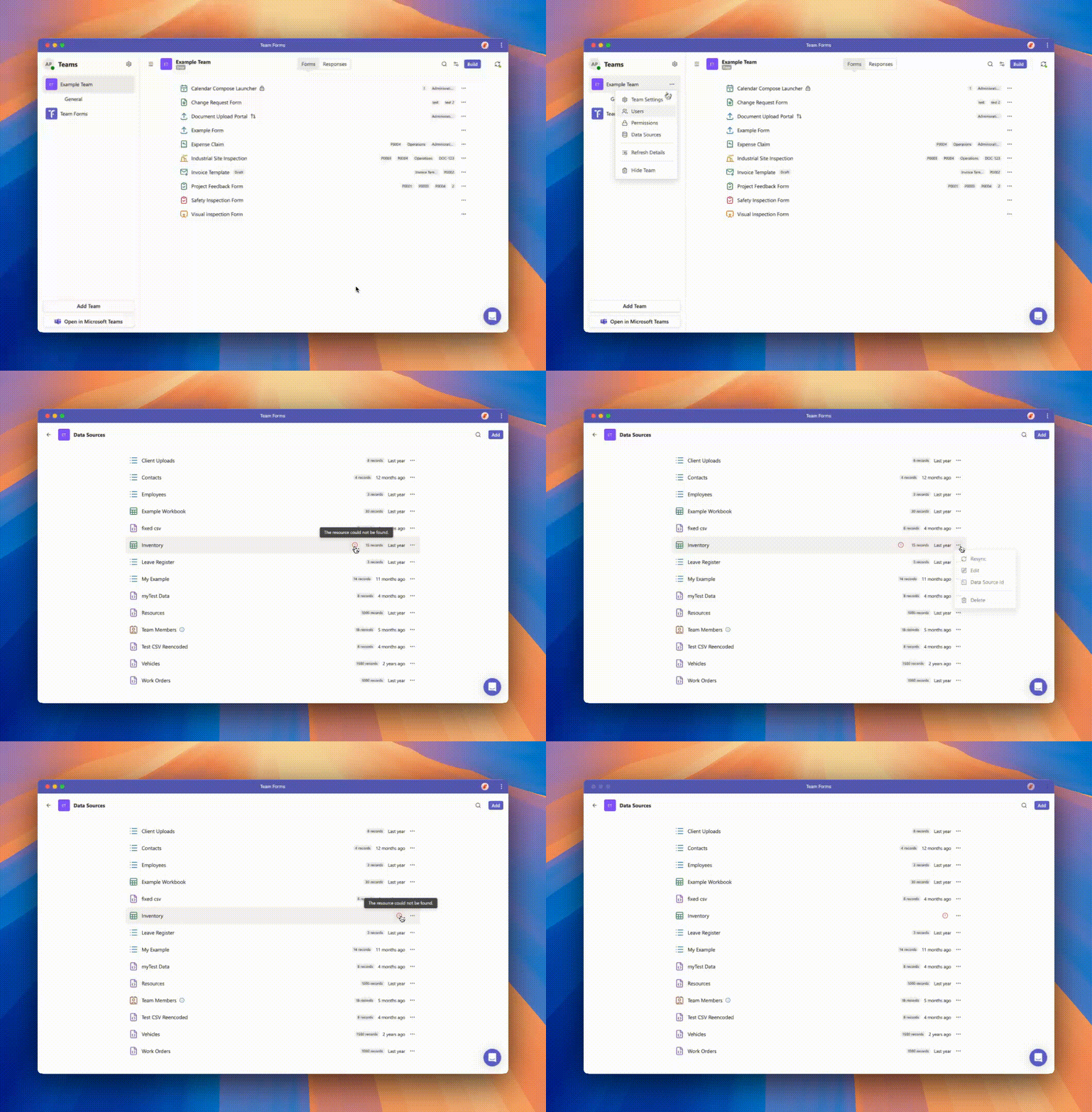
Common error messages you may see:
Error Message | What It Means |
No permission | The account retrieving the data does not have access to the SharePoint list or file. Check the responder for User access, or the authorising account for Managed access. |
Resource could not be found | The SharePoint list or file was moved, renamed, or deleted. |
For large managed or public sources, also check the loading limits. Use a SharePoint query to narrow the source if the expected records fall outside the returned page.