
Subscription and billing
Team Forms offers a free plan and paid subscriptions for individual teams, with enterprise options for broader deployments. Current plan details are available on the Team Forms pricing page.
Purchase a subscription
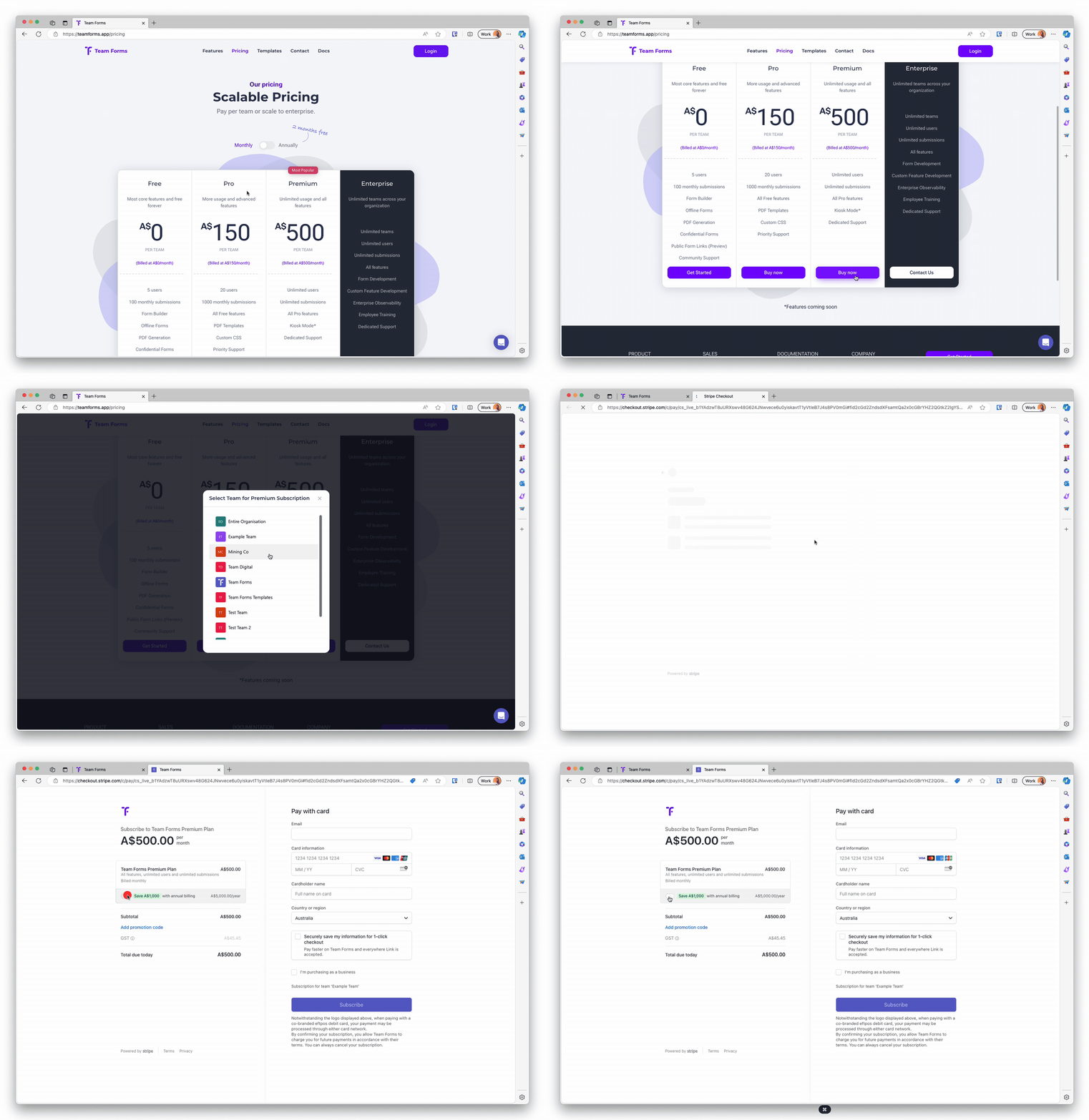
Section titled “Purchase a subscription”- Open the pricing page and select Buy now for the required plan.
- Sign in if prompted and allow the checkout window if your browser blocks pop-ups.
- Enter the billing details and choose monthly or annual billing.
- Return to Team Forms and confirm that the subscription is attached to the intended team.
Contact contact@teamforms.app if your organisation needs invoice purchasing or an enterprise arrangement.
Manage an existing subscription
Section titled “Manage an existing subscription”You can open the billing portal from Team Forms or directly from the billing portal sign-in page. Both open the same portal.
From Team Forms
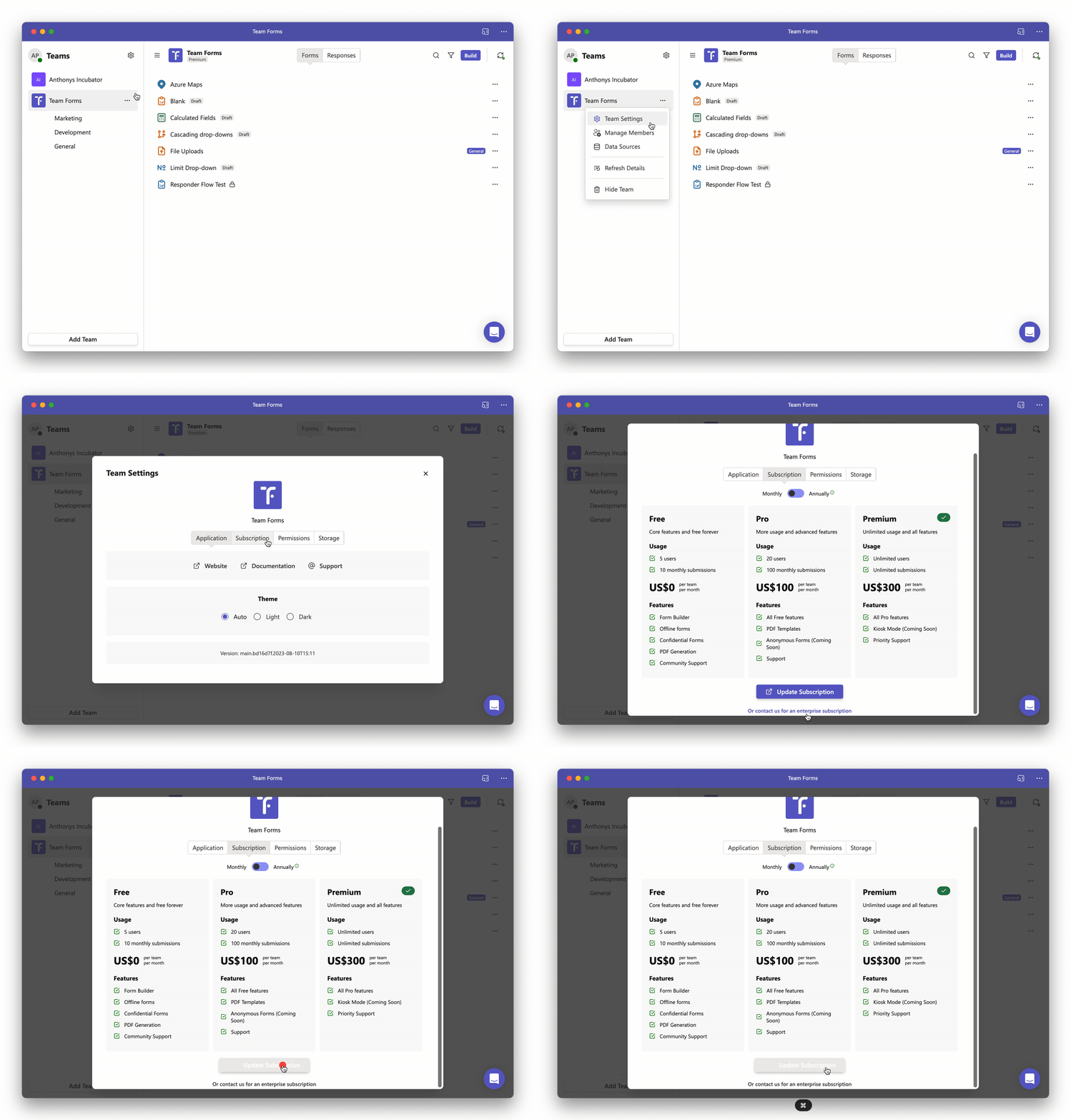
Section titled “From Team Forms”The billing owner or a team owner can open Team Settings, select the subscription tab, and choose Update Subscription to access the billing portal. For enterprise subscriptions, only the billing owner can open the portal from Team Forms.
From the billing portal sign-in page
Section titled “From the billing portal sign-in page”Billing contacts can open the portal without signing in to Team Forms. This helps finance staff who are not members of the team.
- Open the Team Forms billing portal.
- Enter the billing email address for the subscription. This is the address that receives invoices and receipts.
- Open the sign-in link that Stripe emails to you.
If the sign-in email does not arrive, check that you entered the billing email address. If one email address is the billing contact for several subscriptions, this page opens the most recently created active subscription. Use Update Subscription in Team Forms to manage the others. To change the billing email address, open the portal from Team Forms. You cannot change it after signing in this way. Subscriptions purchased through the Azure Marketplace are billed by Microsoft and are not available in this portal.
What you can do in the portal
Section titled “What you can do in the portal”From the billing portal you can update payment details, change the billing term, and download invoices. See Update payment details, switch to annual billing, and download invoices.
Licensing and usage
Section titled “Licensing and usage”Plans can apply limits based on teams, users, or feature usage. Review Pricing plans, what counts as a team, what counts as a user, and checking usage limits before changing membership or purchasing additional capacity.
Subscription transfers and marketplace purchases need additional steps. See Transfer a paid subscription, transfer an Azure Marketplace purchase, and what happens when a subscription expires.