I'm not receiving email notifications when a form is submitted
Team Forms can automatically send email notifications when a form is submitted. If a notification is missing, check the settings below.
Emails arrive on initial submission but not on resubmission
Section titled “Emails arrive on initial submission but not on resubmission”Open the form builder’s Email tab and expand Advanced settings. When Send email on resubmission is off, automatic notifications only send on the initial submission. Turn it on and select Apply if you also want emails when an existing response is edited and resubmitted. The setting is on by default.
A history entry showing Resubmission emails disabled means the email was intentionally skipped, not that delivery or authentication failed. Preview emails and manually triggered notifications are still available. See Choose when notifications send.
No submission email after an approval action
Section titled “No submission email after an approval action”Automatic submission emails wait until all required approvals are approved. They do not send while approvals are outstanding or when the outcome is rejected, revoked, or cancelled. A final rejection does not trigger the submission email.
For approval forms, the approval component’s request, approval, rejection, and revoke emails are usually the better option. Configure the notification for the relevant action in that component; a separate submission email is typically unnecessary. If both are enabled, the final approval can produce two emails. See Using submission emails with approvals, including how Send email on resubmission affects approval completion.
1. Check email notifications are enabled
Section titled “1. Check email notifications are enabled”If you are not receiving email notifications the first thing to check is that you have enabled, this feature for your form template. When on the form builder screen navigate to the email tab and toggle the feature on.
2. Check your authentication
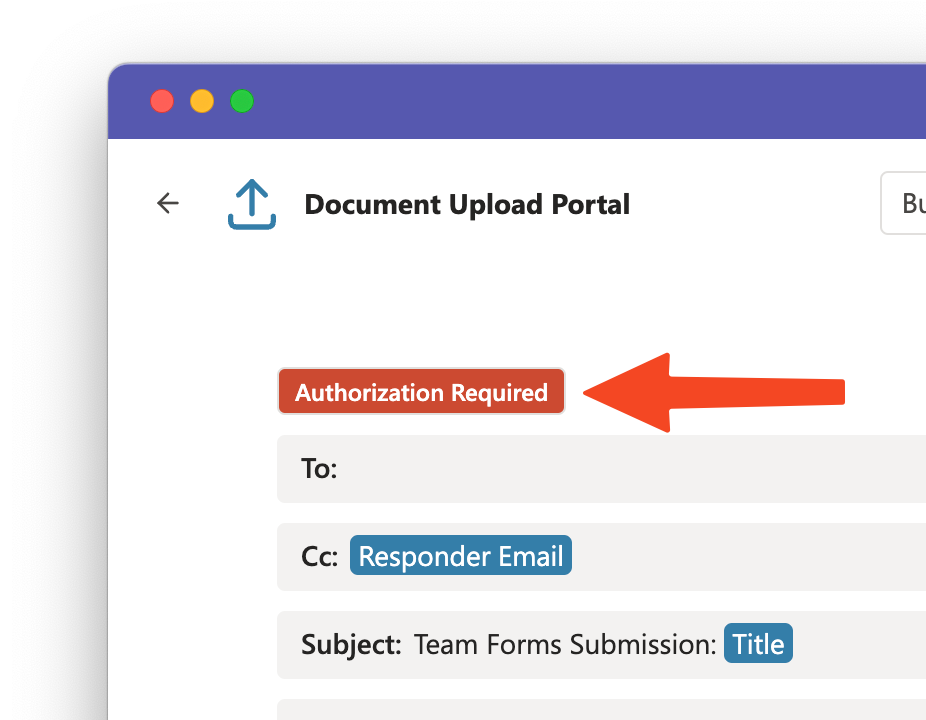
Section titled “2. Check your authentication”For the email notification feature to work you need to give Team Forms permission to send emails on your behalf. If you see a red “Authorization Required” message appearing, please click the message and provide permissions in order for the email notification feature to work.
This can happen is you have popups blocked when initially enabling this feature or if your authorisation has expired or been revoked.
3. Check if you are using “Anyone with the link” share method
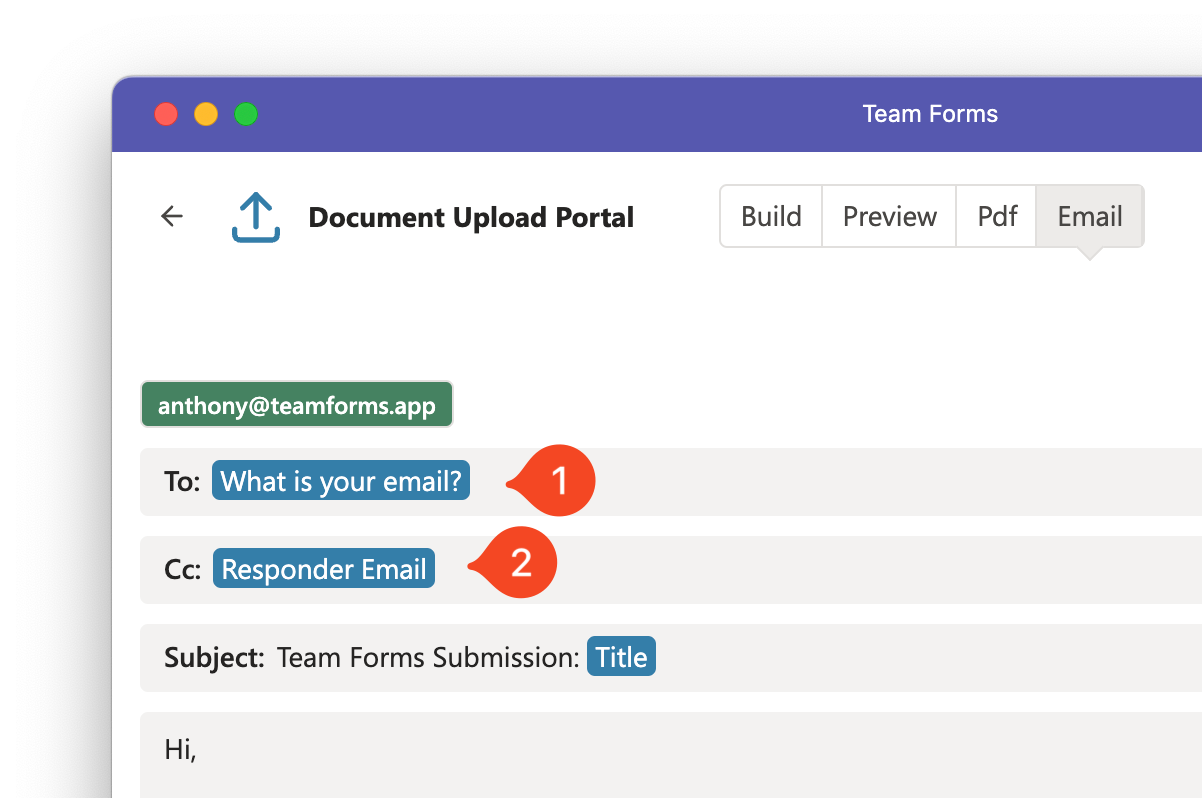
Section titled “3. Check if you are using “Anyone with the link” share method”The email notification feature can automatically send a copy of the form response to the responder. However, if the form is accessed via the “Anyone with the link” share method, this access is considered anonymous in nature and so Team Forms cannot automatically determine who the responder is to email them a copy. If you are using this share method, consider adding a question within your form to ask the responder to manually enter their email, and add the response to the field into the recipient list as a dynamic field.
4. Check send as settings
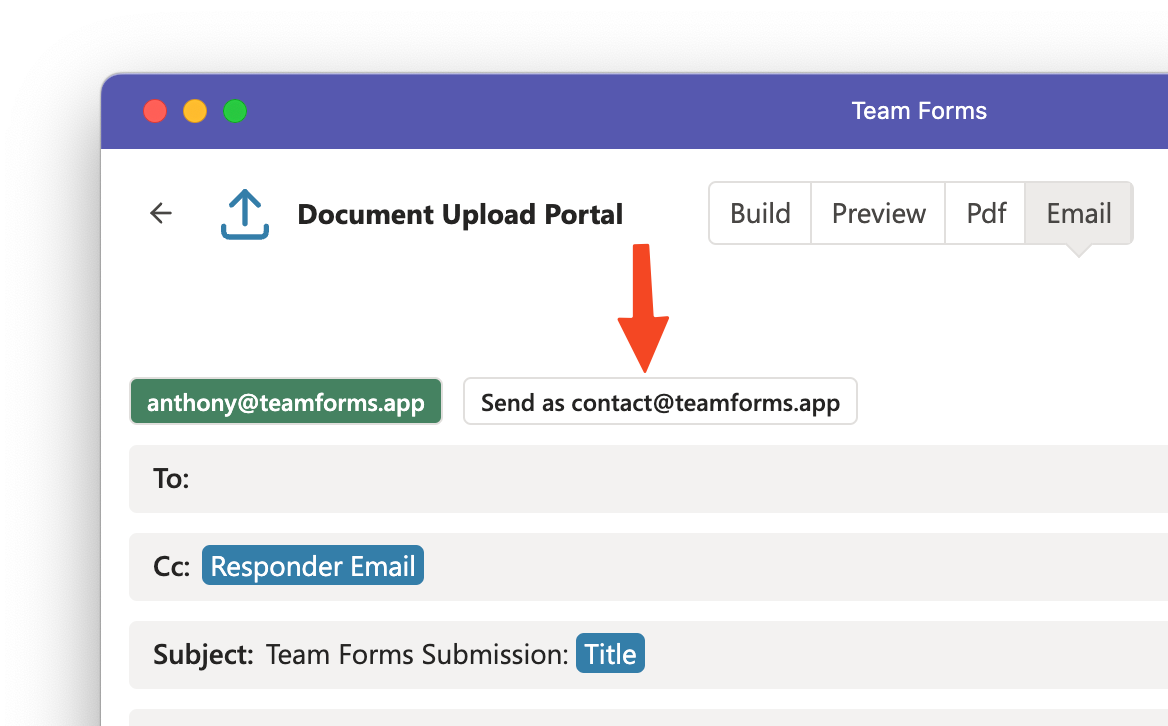
Section titled “4. Check send as settings”The email notifications feature allows you to send email as a shared inbox (e.g. noreply@company.com). However, for this feature to work the user who authenticates the email notification feature must have send access on this mailbox/email address. If the user does not have permission to send on behalf of the chosen email then the email feature will fail.
5. Check Recipient list is valid
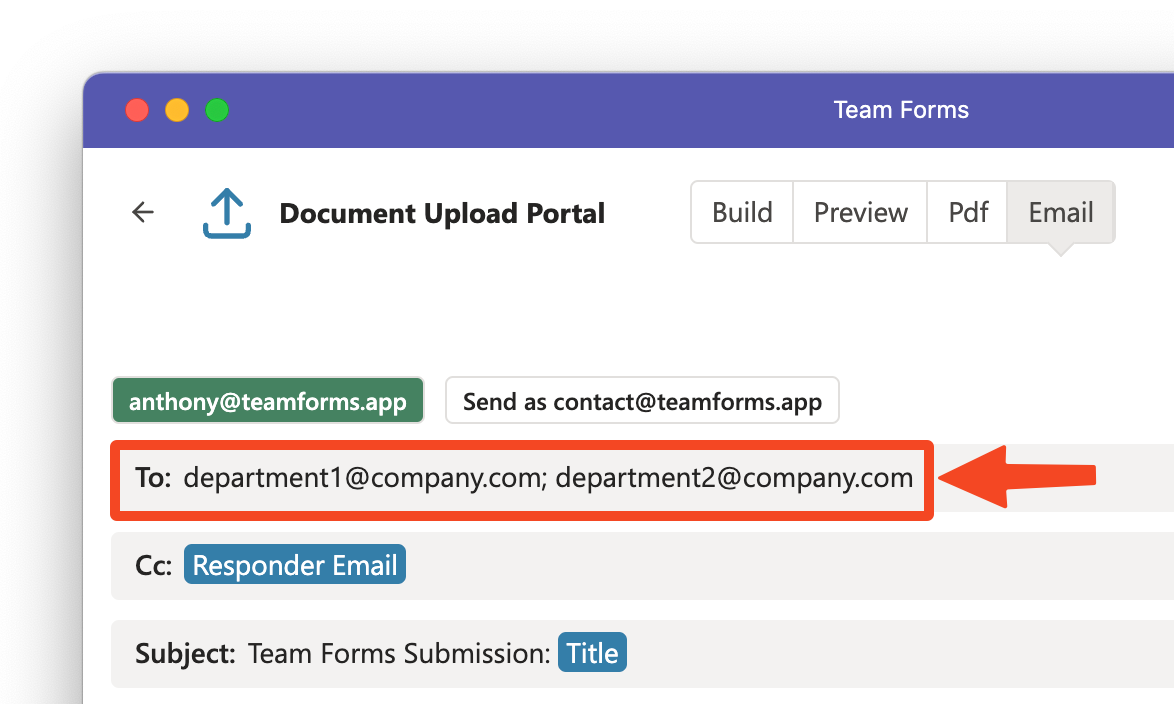
Section titled “5. Check Recipient list is valid”Ensure that you’ve included all relevant email addresses in the recipient list using the “To:” setting. Make sure the email addresses are in a valid format. If you’re sending email notifications to multiple people, place a comma between each email address. Otherwise, the email will be invalid and fail to send.
6. Check you have received responses
Section titled “6. Check you have received responses”If you are not receiving any email notifications for responses, it is possible that this is because your users have not submitted any responses to your form template. You check if you users have actually submitted any responses via the submissions screen.
7. Check your spam folder
Section titled “7. Check your spam folder”In rare circumstance the email notifications may be located in your spam folder or blocked by or organizations IT department. Please check your spam folder or raise the issue with your internal IT support desk.