
Publishing and sharing
Team Forms keeps draft changes separate from the version currently used by responders. This gives authors and reviewers a safe place to test a form before publishing it.
Review and publish a draft
Section titled “Review and publish a draft”Changes made in the builder are saved as a draft. Open Review Draft to test the responder experience on different screen sizes, inspect the generated PDF, and test workflows configured for the draft environment. Publishing promotes that draft to the live form.
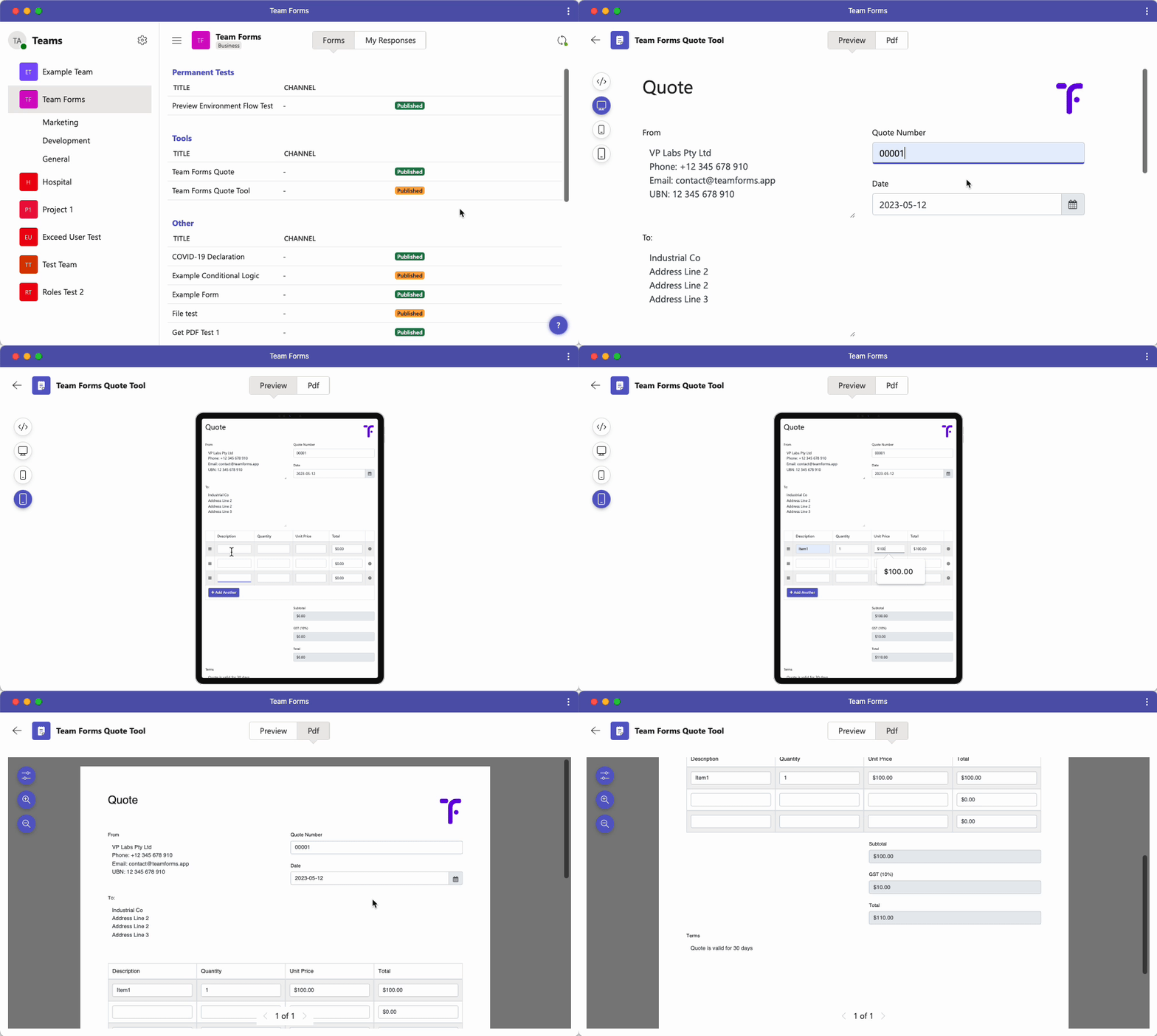
Use a publish comment to record the purpose of an update. The comment appears in version history and makes later reviews or rollbacks easier. Publishing a new form version does not delete existing responses.
See publish comments, unpublishing a form, and publishing troubleshooting for specific cases.
Create a share link
Section titled “Create a share link”Open the form’s … menu and select Share. Under Links to this form, choose:
- Specific access link: requires Microsoft 365 sign-in and access granted through team or form permissions.
- Anyone links: allows responses without team membership. Each link can be anonymous or require email verification.
Switching between these options does not change access. Existing Anyone links remain active when you select Specific access link.
Under Anyone links, select Create Anyone link for your first link or New link to add another. Only form builders can create or delete Anyone links. Complete Microsoft authorization if prompted, then select the link you want to distribute. Use its authorization icon to re-authorize it, or Delete to revoke it. The link URL stays the same unless you delete the link, but its authorization can expire.
Choose how to share
Section titled “Choose how to share”For the selected link, choose Link, QR code, Embed, or Install:
- Link: select Copy link, or Copy customized link after applying customizations.
- QR code: select Download to save the QR image for the configured link.
- Embed: select Copy embed code to add the form to a website. Embed code always enables embed mode and does not open Microsoft Teams.
- Install: generate and copy an install link, edit the app name, and choose Open in embed mode. See install a specific form.
Customize this link
Section titled “Customize this link”Expand Customize this link in the Link, QR code, or Embed view:
| Setting | What it does |
|---|---|
| Email verification | Available for Anyone links on Pro, Premium, and Enterprise. Require verification, optionally restrict email domains, and choose whether to show the form preview before verification. Select Save verification settings. |
| Prefill | Enter values using Form or a JSON object using Raw, then select Apply prefill. |
| Redirect URL | Enter the page to open after submission, then select Apply redirect. |
| Embed mode | Hide the app’s back button and extra menu options. |
| Open in Microsoft Teams | Open the configured link in Microsoft Teams. If the link is too long, reduce prefill data or select Use browser link. |
Email verification is saved for the selected Anyone link and applies to existing copies of that link. The other options are included in the link, QR code, or embed code you distribute. They reset in the dialog when you close sharing; already copied links keep their customizations. Install has its own app-name and embed-mode options.
Prefilled values are stored in the URL and can be read or changed by recipients. See pre-filled links, redirects, and email verification for details.
Manage access and branding
Section titled “Manage access and branding”Under Specific access link → Manage access, Team Owners can enable Everyone in your organization or use People and groups → View and edit access. These changes are saved and apply to existing specific-access links. See organization-wide sharing.
Under Anyone links, Form branding → Remove “Powered by Team Forms” is available to Team Owners on paid plans. This setting is saved for all Anyone links to the form.
Check public form access
Section titled “Check public form access”Before distributing an Anyone link, review Permissions and access and its Anonymous or Email verified status. Email verification settings are separate for each link. On Free, links open without verification even if it was previously configured.
Public forms can use data sources, including SharePoint lists and file previews. For each source, open Advanced settings → Data access, choose Managed access, authorise the Microsoft connection, and enable Public form access. Managed access requires a paid subscription. The published form must reference the source. Anyone links identifies unavailable sources and offers Configure to form builders. Data-source changes apply to all links for the form. See Managed access and public data sources.
Anyone links do not support approval actions or User components configured for the entire organization. Review any Unavailable on Anyone links notice before distributing the form.
Other ways to distribute a form
Section titled “Other ways to distribute a form”Share links can be embedded in a website or SharePoint page, installed on a device home screen, opened in kiosk mode, or pre-filled with known values. These are separate delivery options—the form’s permissions still determine who can open and submit it.