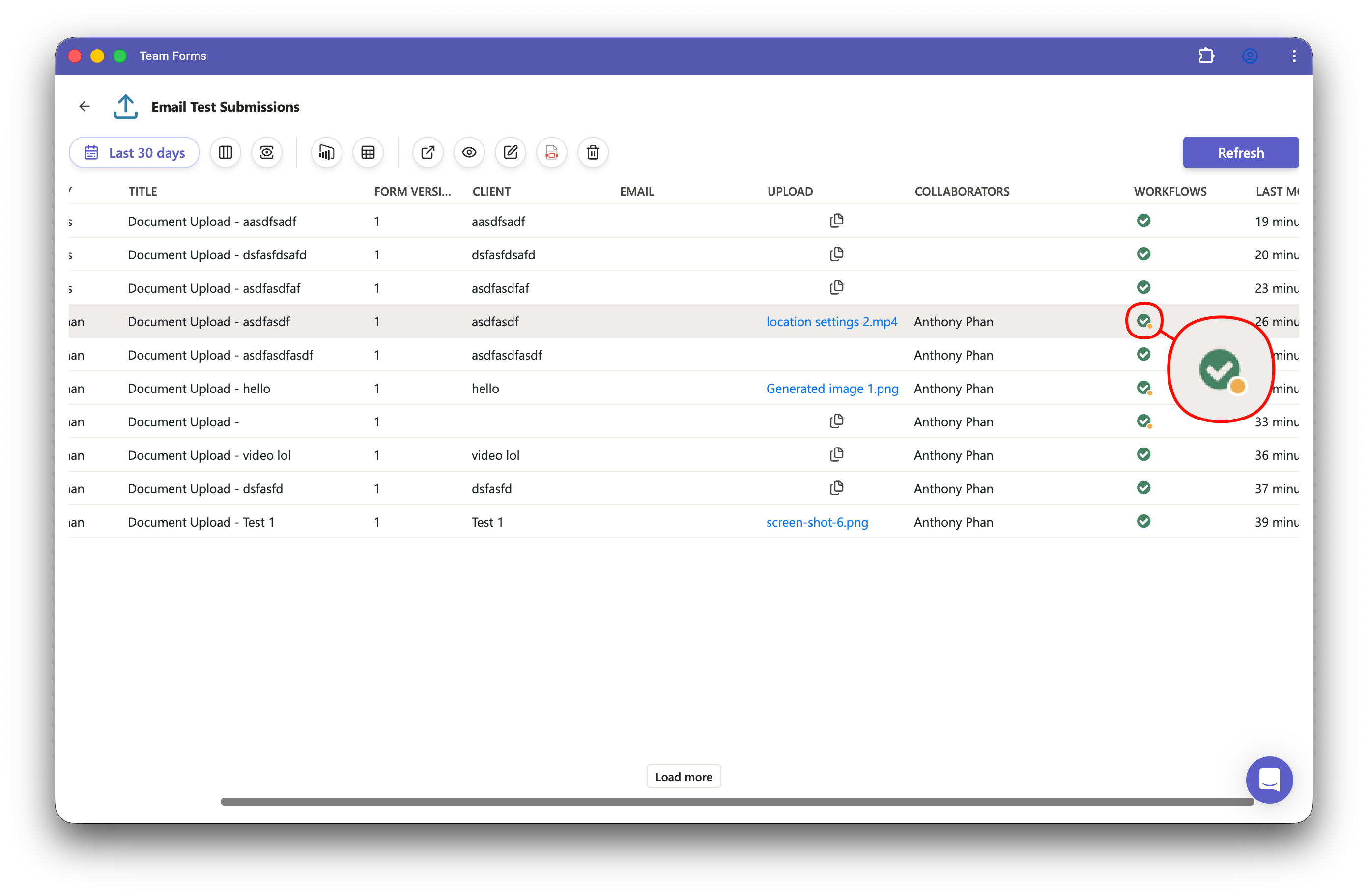
How to attach uploaded files to email notifications
Team Forms email notifications can include the generated response PDF, files uploaded through the form, or both.
Including uploaded files is a paid feature. If your team does not have a paid plan, you can create similar attachment workflows using Power Automate.
Enable uploaded file attachments
Section titled “Enable uploaded file attachments”-
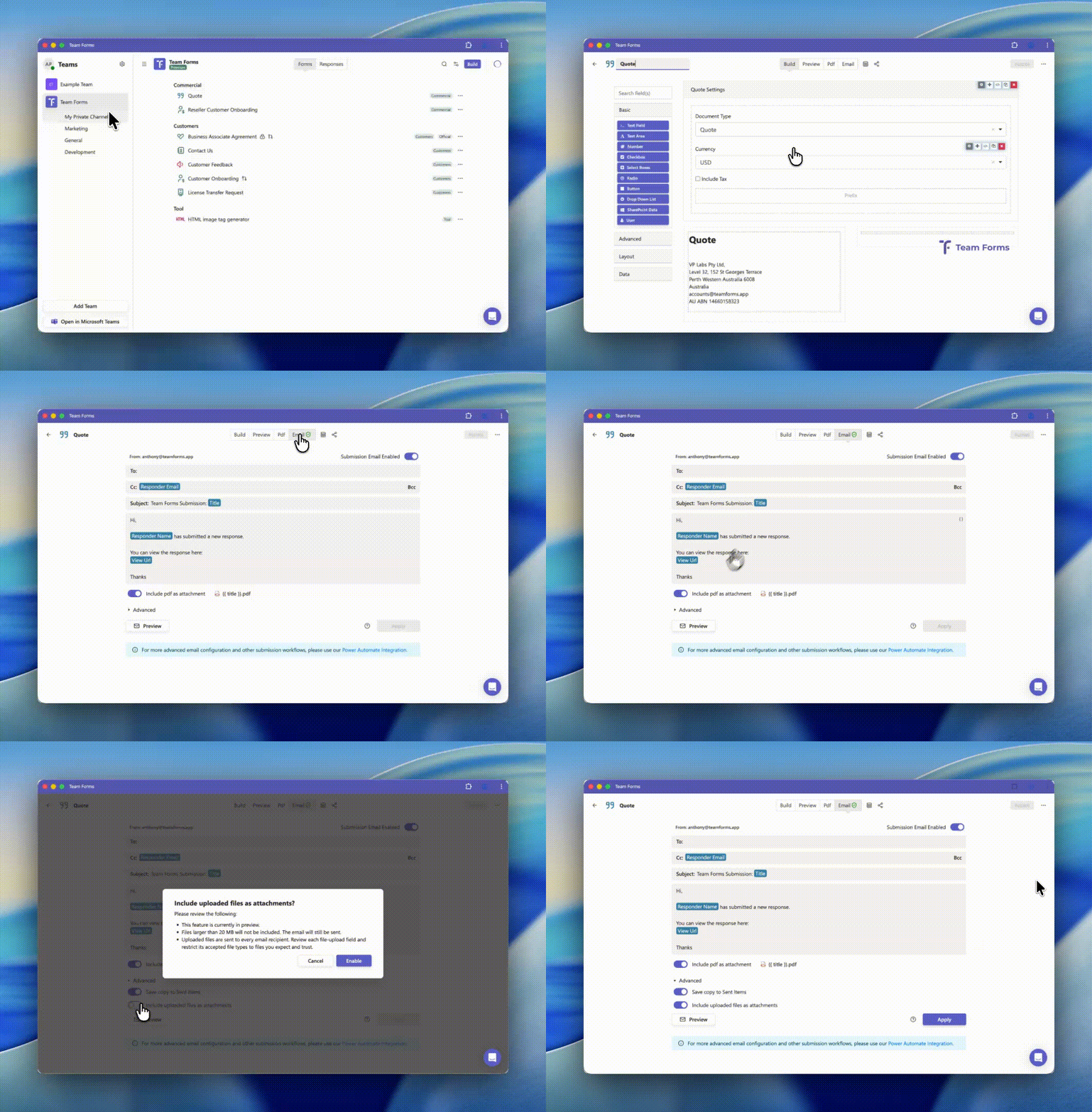
Open the form in the builder.
-
Go to the Email notifications tab.
-
Expand the Advanced section.
-
Enable Include uploaded files as attachments.
-
Review the attachment warning and confirm that you want to enable the feature.
-
Save the form.
New submission emails will now include eligible files uploaded with the response.
Important considerations
Section titled “Important considerations”-
This feature is currently in preview.
-
Individual files larger than 20 MB will not be included.
-
Uploaded attachments are limited to 100 MB in total.
-
Some file extensions are blocked for security reasons.
-
Configure your file-upload fields to restrict the file types users can submit.
-
Email providers may apply additional attachment restrictions.
If a file cannot be attached, Team Forms will still send the email without that file. A warning will appear in the submission’s workflow history so you can see that one or more attachments were excluded.