Add a watermark to the generated PDF
Adding a watermark across the generated PDF document can be useful for marking documents as “Confidential”, “Draft”, or for branding purposes. Team Forms offers two ways to achieve this: the built-in Watermark feature for simple text watermarks, or the custom PDF template feature when you need more control — such as using an image-based watermark.
Simple watermarks
Section titled “Simple watermarks”For plain text watermarks like “Confidential” or “Draft”, the built-in watermark setting is the quickest option:
-
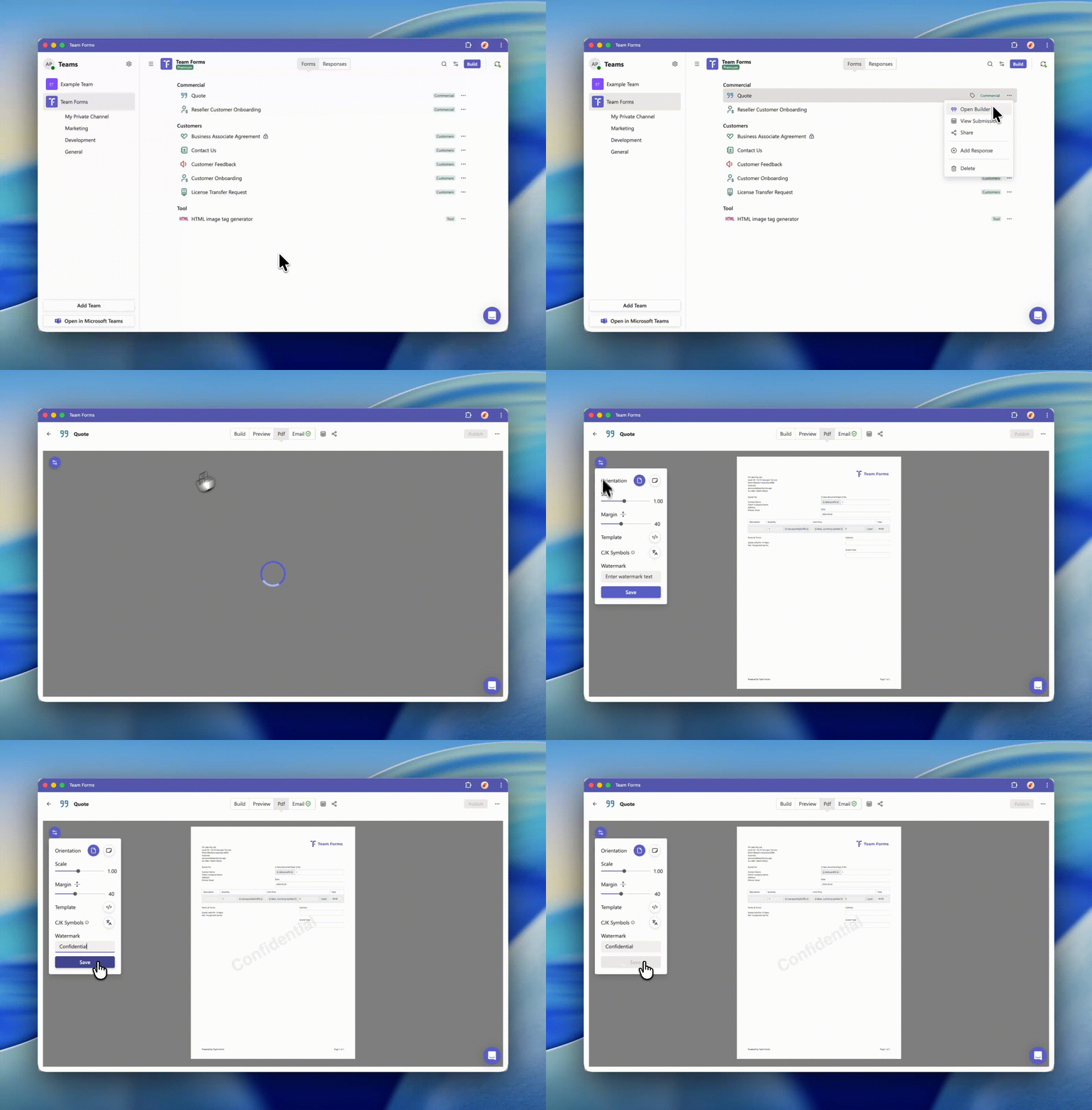
Open the form builder for the form you want to update.
-
Navigate to the PDF tab and click the settings icon in the top left-hand corner.
-
In the menu, enter your watermark text (e.g. “Confidential”) into the Watermark field, then click Save.
The watermark will now appear across every page of the generated PDF.
Advanced watermarks (image-based)
Section titled “Advanced watermarks (image-based)”PDF templates is a powerful feature available to paid customers, allowing them to have full control over the styling of the generated PDF document (e.g. adding a header and footer to each page). This feature can also be used to add a water mark/background image to the PDF document. In this tutorial we will demonstrate how you can achieve this:
-
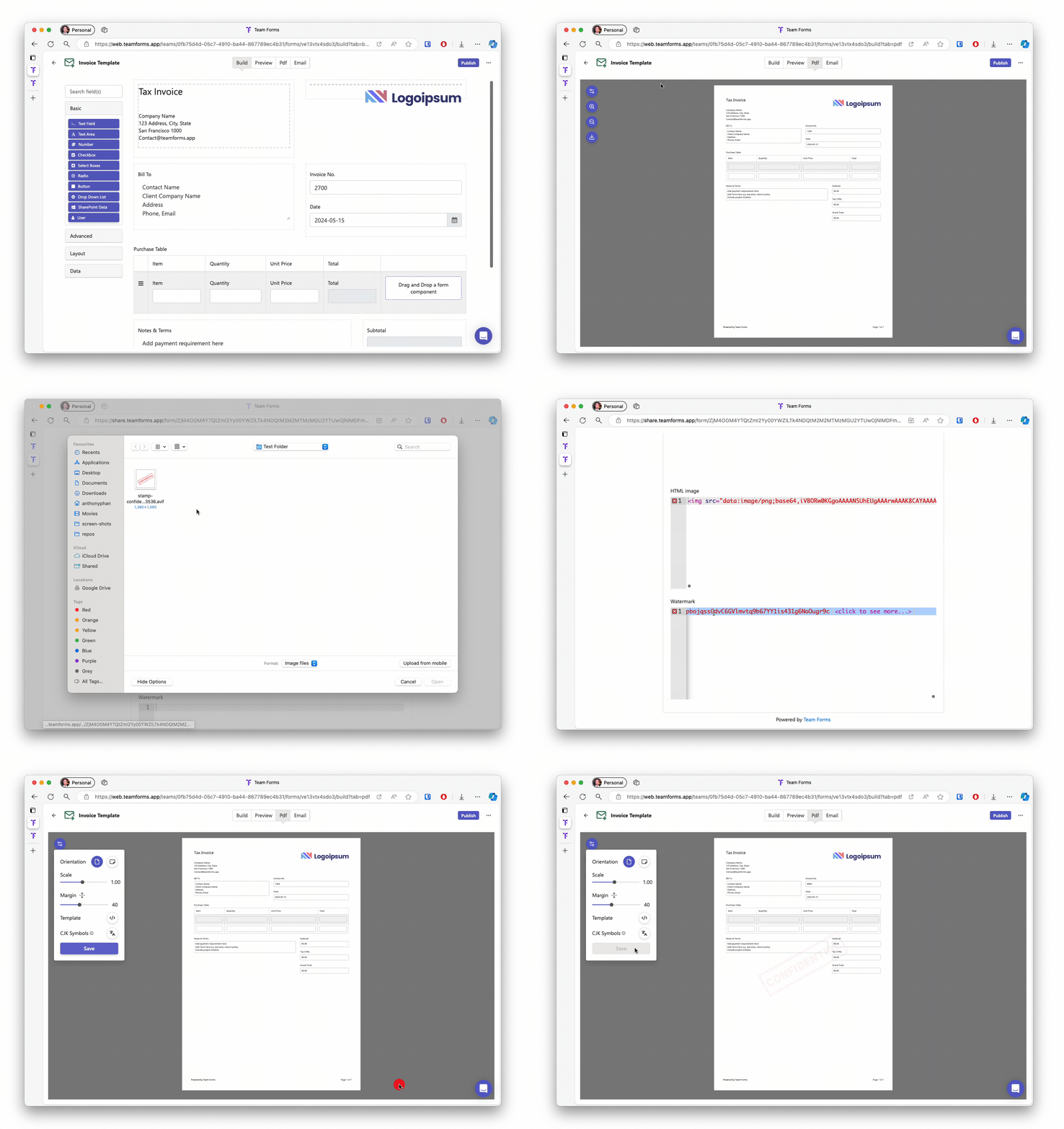
Navigate to the PDF settings by opening the form builder screen > PDF tab > Setting icon

-
Click the template edit icon to launch the template editor

-
Upload the image you wish to use as a watermark into the tool below generate the html code for the watermark
[Team Forms html image tag generator](https://share.teamforms.app/form/ZjM4OGM4YTQtZmI2Yy00YWZlLTk4NDQtM2M2MTMzMGU2YTUwOjNlMDFmODQ2LTdhZTMtNDIyYi04ZWU3LTVhNTY1MTQxOTNiZTplZjk4Y2VkNi0xYmE4LTQ5OWMtOTJmMC05ZDU1NTcxOTMyZWU=\) -
Paste the code at the top of the PDF template
-
Preview and save your changes