
Responses and submissions
Users can save a response as a draft and return to it later, or submit it when complete. Drafts can be shared so several people can work on the same response; see Collaborate on shared drafts. When a response is submitted, Team Forms:
- stores and version-controls the response in SharePoint;
- generates and archives a read-only PDF;
- starts any configured email notifications and workflows; and
- makes the response available to authorised users in Team Forms.
Find and review responses
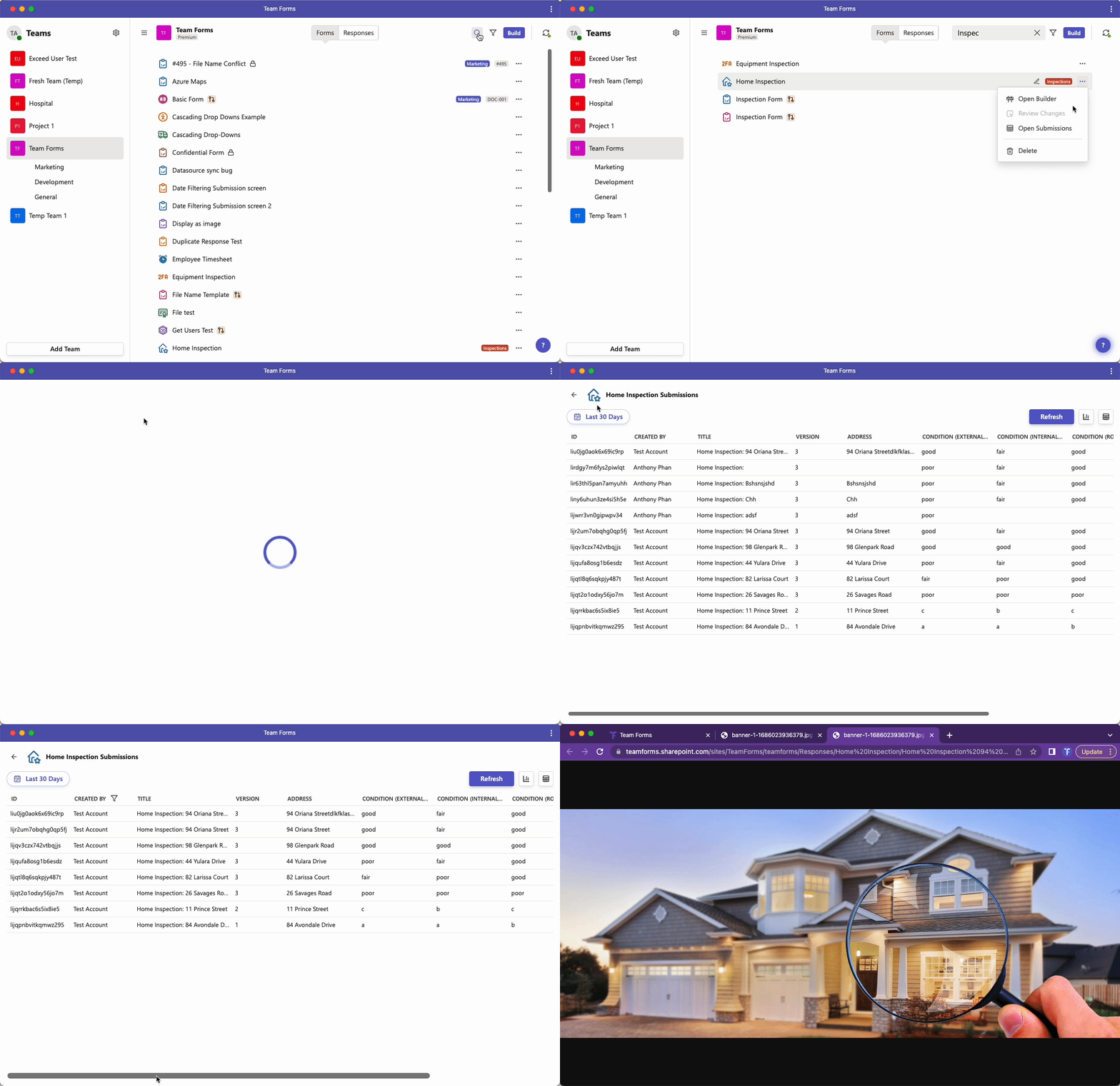
Section titled “Find and review responses”For a form-wide table, open the form’s … menu and select View Submissions. Each question appears as a column, and you can filter, sort, open, and export responses.
The toolbar starts with Views, which shows the name of the selected saved view, followed by the date range, Table Settings for columns, and reporting and export actions such as the Power BI template and Download as CSV. Your filters, sorting and selected view are kept when you open a response and come back.
The Status column, next to #, shows whether each response is Submitted or a Draft. The table shows submitted responses by default. Use the Status column’s filter to show drafts, submitted responses, or both; clearing the Status filter shows both. Drafts are dated by when they were last changed and submitted responses by when they were submitted, and a draft is listed once, as Submitted, after it’s submitted. Drafts saved before shared drafts were introduced appear once they’re saved again.
Saved views remember their Status selection. Views saved before drafts were listed continue to show submitted responses only.
Drafts in the table can be opened, edited, shared, opened in SharePoint, deleted, and their version history viewed. PDF downloads and workflow runs from the table are only available for submitted responses, while drafts can be included in CSV exports and previewed as a PDF from the draft’s … menu.
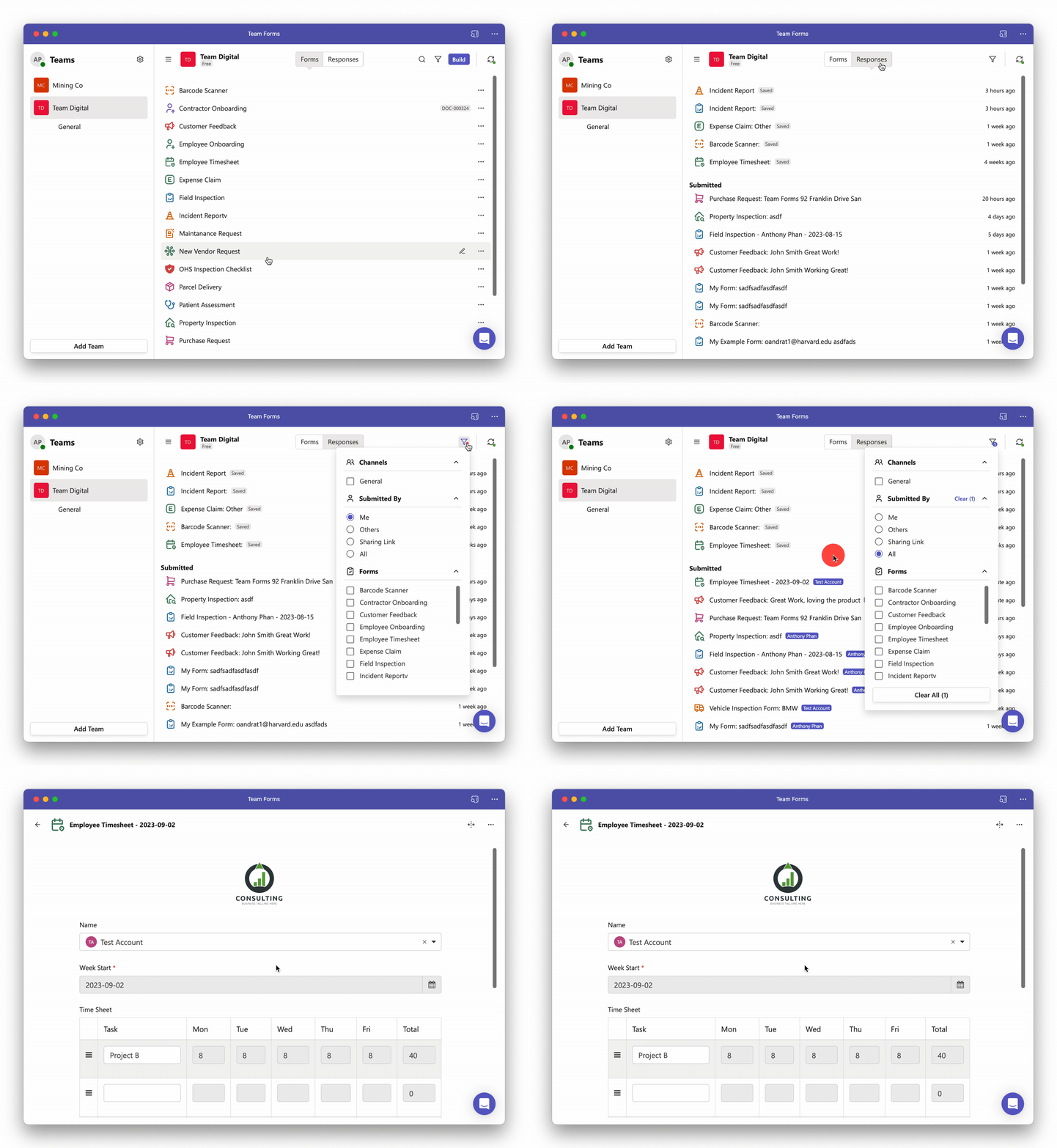
The Responses tab is useful for opening your drafts and submissions directly. Its filter defaults to your own responses; change Me to All when you have permission to collaborate on responses from other team members.
If responses appear to be missing, first check the selected team, form, status, owner filter, and your response permissions. See Where are all the responses? and Why can’t I see any responses? for targeted troubleshooting.
Manage response data
Section titled “Manage response data”Whether a submitted response can be edited or deleted depends on the form settings and the user’s permissions. Editing creates another version rather than removing the response history. Submission numbers identify responses but are not guaranteed to be consecutive when drafts are abandoned, responses are deleted, or work happens offline.
- Enable or disable submission editing
- Edit submissions
- Copy an existing submission
- Collaborate on shared drafts
- Delete a response
- Export responses to Excel
- Understand skipped submission numbers
For the generated document attached to each submission, continue to PDF documents.
Run workflows across submissions
Section titled “Run workflows across submissions”Select multiple rows on the Submissions screen, then choose Re-run workflows. You can retry failed actions, run actions for all selected submissions, or run only workflows with no recorded attempt. Choose from PDF generation, email notifications, and connected workflows; all actions start unchecked.
Use Workflows not run yet to process existing submissions with a newly connected workflow without manually finding which submissions already triggered it. For one submission, open Workflow runs from its right-click menu or the Workflows column.
See Monitor and re-trigger workflows for selection steps, trigger choices, and how each run option handles existing history.