
Control component visibility in generated PDFs
Team Forms generates a PDF when a response is submitted. Each component has a PDF Visibility setting that is independent from its visibility in the browser form.
Hide a component from the PDF
Section titled “Hide a component from the PDF”- Open the component settings in the form builder.
- Select the Display tab.
- Under PDF Visibility, select Hidden.
- Save the component and verify the result in the builder’s PDF tab.
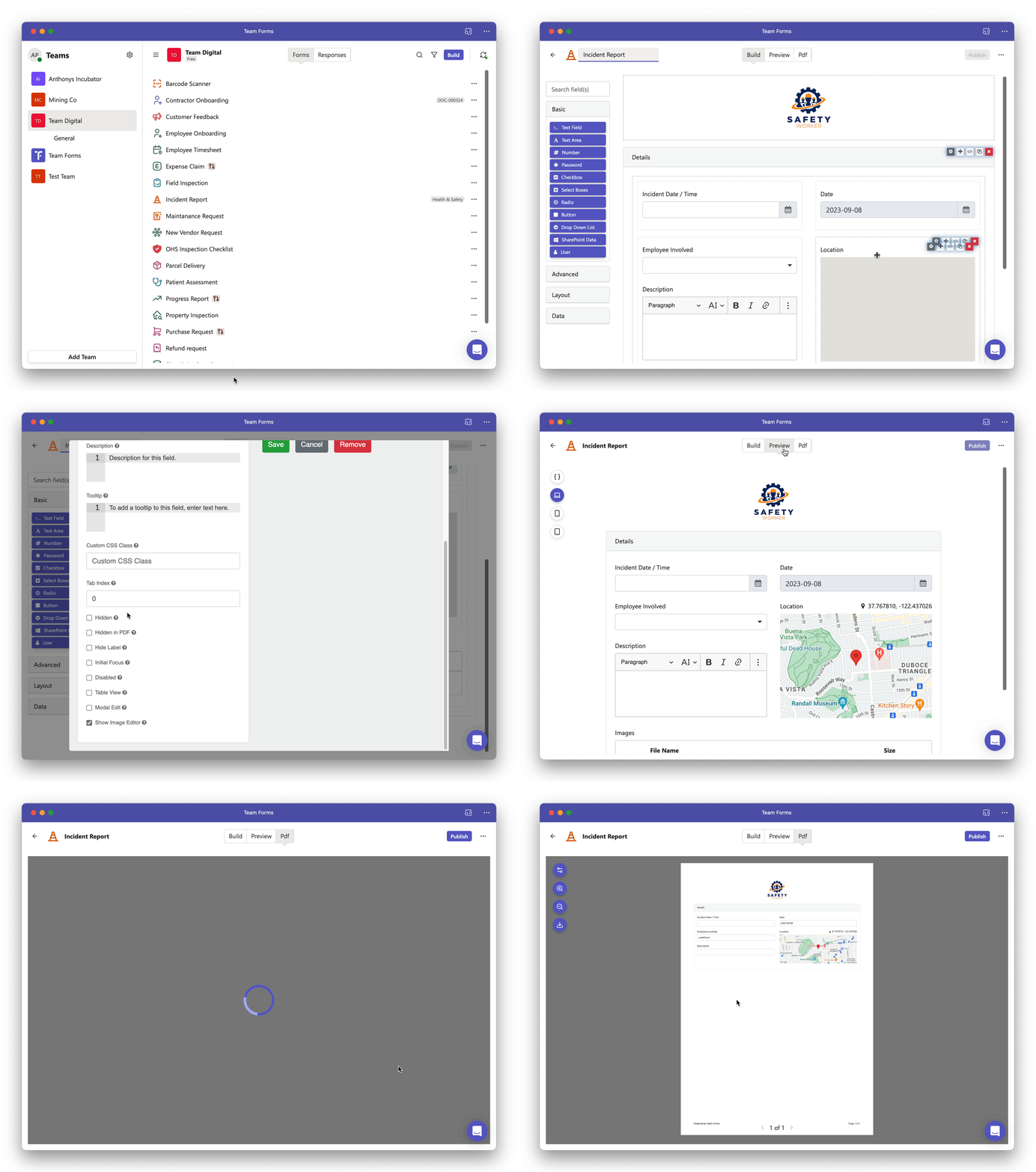
This is useful for browser-only instructions, buttons, and interactive previews.
Show a browser-hidden component in the PDF
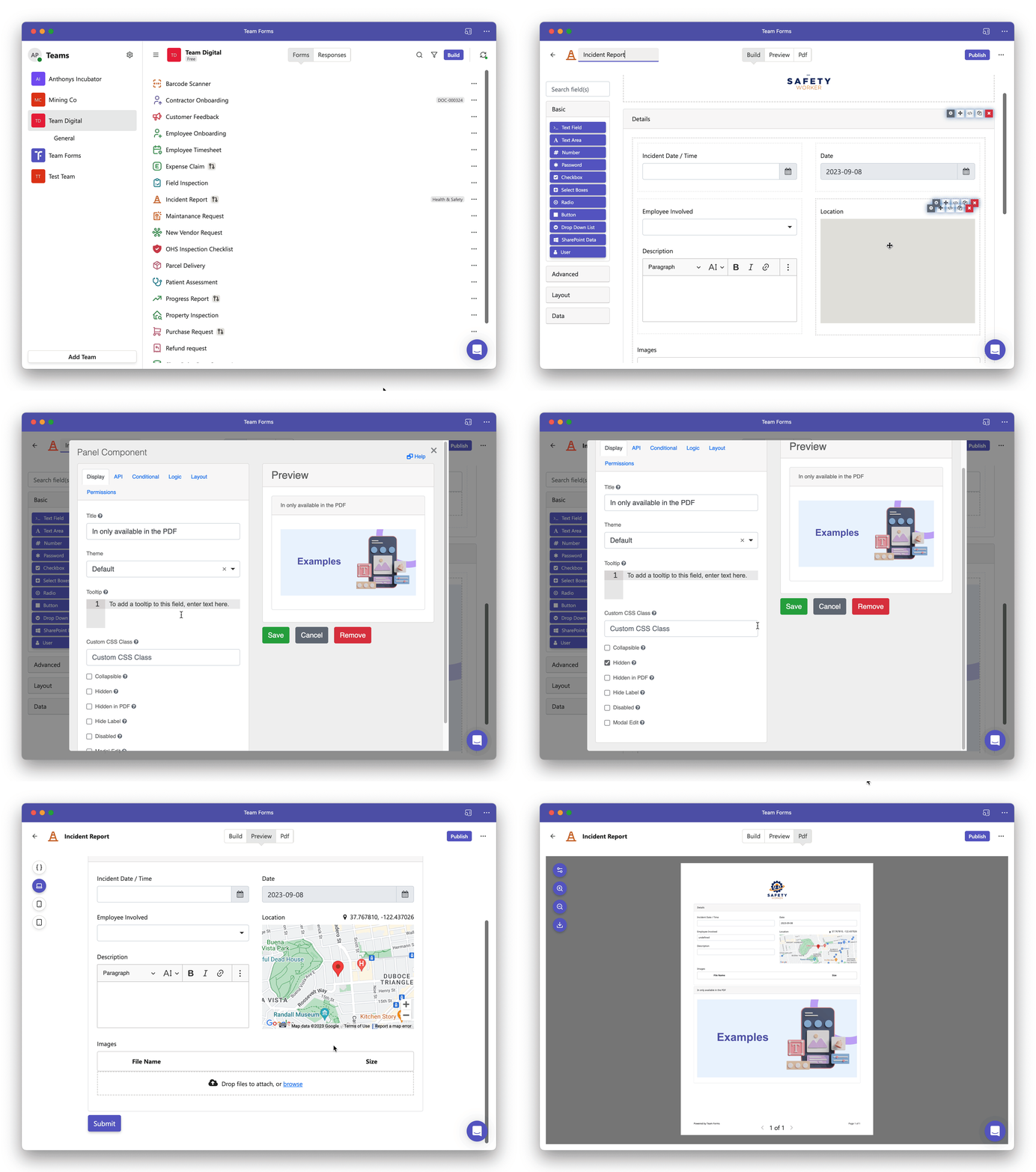
Section titled “Show a browser-hidden component in the PDF”The component’s normal Hidden setting controls the browser form separately. To create PDF-only content:
- Enable Hidden for the browser form.
- Set PDF Visibility to Visible.
- Check both the Preview and PDF tabs before publishing.
Hide an empty field or section
Section titled “Hide an empty field or section”Select Hide if empty when an optional component should appear only when it contains a value. For containers and visual sections, Team Forms also checks their child components. This avoids empty labels and unnecessary whitespace in the PDF.
Source JSON
Section titled “Source JSON”The exact schema property is pdfVisibility:
{ "pdfVisibility": "visible"}Supported values are:
| Value | Behaviour |
|---|---|
visible | Allow the component to appear in the PDF; normal conditional logic still applies. |
hidden | Never include the component in the PDF. |
hideIfEmpty | Include the component only when it or its children contain a value. |
The static hidden property controls the browser form separately. Conditional rules such as conditional and customConditional are also evaluated during PDF rendering. See the form schema PDF visibility reference for technical examples.